Office network setup in Cape Town for cabling and WiFi
A dependable office network starts with the layout, not just the router. An office network setup in Cape Town brings structured cabling and WiFi access-point placement together so devices can connect throughout the workspace. Cabling provides wired connections, while access points extend wireless coverage to the areas staff use.
A strong WiFi signal matters, but it is only one part of a reliable setup. Cable routes, desk locations, walls and the areas that need coverage all shape how the network should be planned.
This guide explains what structured cabling and access-point installation involve, how the work is planned and what affects a project’s scope. It also covers practical considerations for choosing an approach, so you can see how the parts fit together before installation begins.
Table of Contents
Structured and data cabling installation
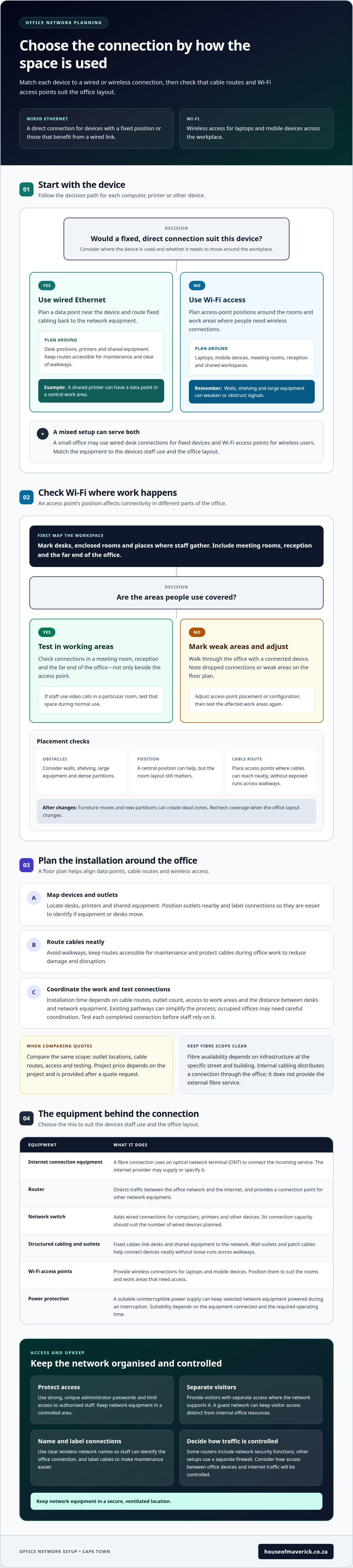
A well-planned office network setup in Cape Town starts with the office layout. Cable routes and connection points should match where staff and equipment are located.
Data cabling requirements
Installation begins by mapping desks, printers and shared equipment. Each device needs a suitable route to the network equipment, with outlets positioned nearby. For example, a shared printer may need a data point in a central work area. Routes should avoid walkways and remain accessible for maintenance. Clear labels make connections easier to identify when equipment or desks move.
For an office network setup in Cape Town, compare quotes against the same scope: outlet locations, cable routes, access and testing. The price depends on the project and is provided after a quote request. Fibre availability depends on infrastructure at the specific street and building. Internal cabling distributes a connection through the office but does not provide the external fibre service.
South African businesses can reduce network security risks by using strong, unique administrator passwords and limiting access to authorised staff. Keep network equipment in a controlled area and provide visitors with separate access where the network supports it.
Installation timeframes
Installation time depends on cable routes, outlet count and access to work areas. Existing pathways can simplify the process, while occupied offices may need careful coordination. The distance between desks and network equipment also affects the work. Mapping these details helps establish a practical schedule before installation begins.
Setup problems and risks
Common problems include misplaced outlets, tangled cable routes and connections that are difficult to identify. A floor plan helps position data points near desks and shared devices. Testing each completed connection can uncover faults before staff rely on it. Protect cables during office work and keep routes clear of walkways to reduce damage and disruption.
WiFi and access-point installation
WiFi access points extend wireless access beyond a single router. Their position affects connectivity in meeting rooms, reception areas and shared workspaces. Start with an office floor plan showing desks, enclosed rooms and places where staff gather. This helps identify where wireless access matters during everyday work. A reception desk may need reliable access for online systems, while a meeting room needs connections for staff laptops.
Walls, shelving and large equipment can weaken or obstruct wireless signals. An access point hidden behind a cabinet may provide poor service to nearby desks. A central position can help, but walls and room layout still matter. Consider each area separately, including closed offices and rooms with dense partitions. Access points should also be positioned where cables can reach neatly, without exposed runs across walkways.
Installation involves mounting access points, connecting them to the network and configuring wireless access. Use clear network names so staff can identify the office connection. A separate guest network can keep visitors’ access distinct from internal office resources. Once configured, test connections in working areas, not only beside the access point. Check a meeting room, reception and the far end of the office.
Dead zones can appear after furniture moves or partitions change. Walk through the office with a connected device to identify dropped connections or weak areas. Mark those locations on the floor plan, then adjust access-point placement or configuration. If staff use video calls in a particular room, test that space during normal use. This practical check helps reveal coverage gaps before the office depends on WiFi throughout the day.
For a new office or a layout change, align access-point positions with desks, meeting rooms and cable routes before installation. A coordinated office network setup can bring wireless access and the physical workspace plan together.
What equipment is needed for a small office network?
A small office network combines internet equipment, wired connections and WiFi access. The right mix depends on the devices staff use and the office layout. Shared printers, staff computers and meeting-room laptops each need a suitable connection. Start by listing the devices, then match the equipment to their connection needs.
Internet connection equipment: A fibre connection uses an optical network terminal, or ONT, to connect the incoming service. The internet provider may supply or specify this equipment.
Router: The router directs traffic between the office network and the internet. It also provides the connection point for other network equipment.
Network switch: A switch adds wired connections for computers, printers and other devices. Its connection capacity should suit the number of wired devices planned.
Structured cabling and outlets: Fixed cables link desks and shared equipment to the network. Wall outlets and patch cables connect devices neatly without loose runs across walkways.
WiFi access points: Access points provide wireless connections for laptops and mobile devices. Their positions should suit the rooms and work areas requiring access.
Power protection: A suitable uninterruptible power supply can keep selected network equipment powered during an interruption. The equipment connected and required operating time determine its suitability.
Some routers include network security functions, while other setups use a separate firewall. The key is deciding how the network will control access between office devices and internet traffic. Keep network equipment in a secure, ventilated location, and label cables for easier maintenance.
For example, a small team with desktop computers, a shared printer and meeting-room laptops may need wired desk connections and WiFi access. A switch connects fixed devices, while access points serve wireless users. Planning around the equipment staff actually use helps avoid components the office does not need.
Before installation, map each device to its connection type and location. This gives the installer a practical equipment list and helps coordinate cabling, power and placement. The resulting setup can support current work while allowing for changes to the office layout.
Wired Ethernet vs Wi-Fi for a Cape Town office
Ethernet and WiFi suit different working patterns in Cape Town offices. A desktop computer at a fixed desk can use a wired connection, while a staff laptop in a meeting room benefits from wireless access. The choice depends on device location, movement and the work each connection supports. A combined setup often suits offices with both stationary equipment and mobile staff.
Ethernet connects a device directly to the network through a cable and outlet. It is a practical choice for desktop computers, printers and other equipment that stays in one place. Wired connections also keep fixed devices off the wireless network. Plan outlets near permanent workstations instead of relying on long cables across floors. This makes desk changes and maintenance easier to manage.
WiFi lets staff connect laptops and mobile devices without plugging into a wall outlet. It supports movement between desks, meeting rooms and shared spaces. However, walls, partitions and office equipment can affect the signal. A laptop that works well beside an access point may lose connection in an enclosed room. Test WiFi where staff actually work, including meeting spaces and areas behind partitions.
Use Ethernet for fixed devices, such as desktop computers and shared printers.
Use WiFi for staff laptops, phones and meeting-room devices that move.
Combine both when an office needs stable desk connections and flexible access.
For a practical decision, list each device and its usual location. Mark fixed equipment, such as a reception desktop, separately from mobile laptops. Then consider whether cabling is straightforward or wireless access is needed in several rooms. Connection needs can change when desks move, so include likely layout changes in the plan.
House of Maverick can help plan network connections as part of office improvements. Plan your office network layout around fixed equipment, staff movement and workspace changes.
House of Maverick: Office Remodelling
House of Maverick can coordinate office remodelling and network work when workspace changes affect cabling or WiFi access. For example, a revised desk layout may call for new connection points, while partition changes can alter where wireless access is needed. Planning these requirements alongside the office layout helps align the physical space with the network.
Turn to House of Maverick when planning an office refresh alongside network installation, or when existing work areas need changes to support staff and equipment. Office Remodelling can address the workspace, while Networks covers connectivity needs. Painting and Air-conditioning may also form part of a broader office project when they suit the work required.
Contact House of Maverick to discuss your office remodelling and network requirements.
Plan the next stage of your office
A well-planned office network setup in Cape Town should support how your workplace needs to function in the future, not just its current layout. Consider whether changes to desks, meeting areas or building services could affect where people work and connect. Planning these decisions together helps align future office work with the network.
House of Maverick offers Office Remodelling, Painting and Air-conditioning, which can form part of a wider workplace update alongside network work. The right scope depends on the changes your office needs, from refreshing its interior to coordinating practical improvements for staff and equipment.
Share your priorities and the changes you’re considering with House of Maverick. A clear starting point helps shape a practical conversation about the space and its network requirements. Contact House of Maverick to discuss your office plans and take the next step with confidence.
Frequently Asked Questions
Cape Town network installation providers: pricing and service comparisons
Compare quotes against the same scope, including outlet locations, cable routes, access and testing. Depending on the office layout and connection needs, the work may include structured cabling, WiFi access-point installation and related network equipment.
How much does office network setup cost in Cape Town?
The cost depends on the project scope, including cable routes, outlet locations and access to work areas. A price is provided after a quote request.

Comments